
Your first shared projectBeta
Create a named team, share current project state, invite a teammate and connect an approved local worker. Git carries the source.
Share the plan and the results. Each developer keeps their own source checkout, Memtrace analysis and approved workers.
MemCode's noncommercial license applies to collaboration too. Company-internal and commercial work require separate permission. See MemCode's license and commercial-use policy.
Invite your team#
- 1Create a named team
Open your existing project. In Team, choose Create a team, name it and approve your Memtrace account in the browser.
- 2Share the existing project
Choose Share with your team. Check the project and repository. Its current stories, epics, cycles, comments and activity become the shared starting point; your source folder and private worker sessions stay local.
- 3Send an invitation
Choose Invite teammate, optionally restrict it to a verified email, then copy the link and send it privately. The teammate previews the team and project before accepting.
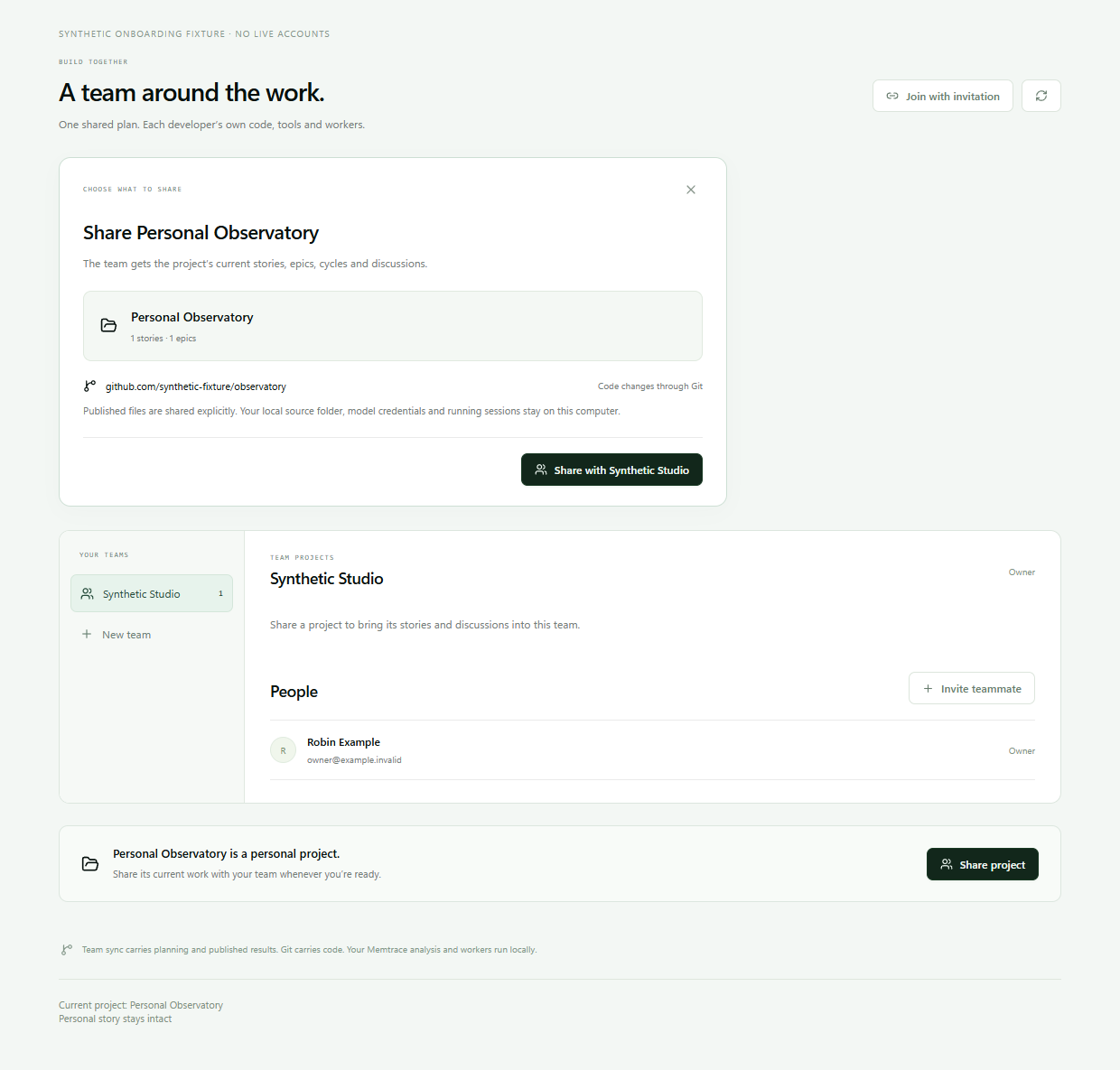
MemCode handles the shared connection for you. During the beta, each account can create up to three teams. Invitations include everything needed to find the shared project; code and workers stay on each person's computer.
Join the current work#
In your existing MemCode installation, choose Join with invitation in Team or the project selector. Paste the link, review its team and project, then Accept and open with the intended Memtrace account.
The project's current work opens immediately. Plan, comment and review published results before downloading code. Personal projects stay separate. There is no empty-project prerequisite and no reason to install MemCode a second time.
Code on your computer#
Choose Work on this computer. Reuse a matching checkout or choose a destination to clone. MemCode preserves current local changes and refuses an unrelated repository. Git access is checked separately; GitHub sign-in is an explicit action when needed.
Let local Memtrace analyze the checkout, then approve your own coding tool in Workers. Starting a shared story first confirms its online claim. A team update never starts a worker on another computer.
Team membership, Git access and coding-provider authentication are separate connections. An invitation does not grant GitHub access or provider credentials.
Share results deliberately#
Review the changes and checks. Publish selected reports or artifacts through Team when ready, up to 5 MiB per file. Teammates receive that saved file. Published HTML does not bundle linked assets or share a running development server.
Use Comments for story discussion. Use Conversation for worker instructions. Selected review comments become worker input only when explicitly sent in a follow-up.
What is synchronized#
- Shared: board, epics, cycles, authored comments, activity, confirmed claims and deliberately published files.
- Local: source folders, Memtrace graphs, credentials, approvals, full agent conversations, browser sessions and terminals.
Git carries the code. Fetch, review and integrate changes using your epic-branch workflow. A current board does not mean your checkout is current. Each computer analyzes its own source.
Claims prevent a second official worker starting the same story. Different stories can still edit the same files. Fleet coordinates local workers; this beta does not provide cross-computer Fleet coordination or live shared-file editing.
Planning edits can queue offline. New shared workers need an online claim. Revocation blocks future Team requests, but cannot erase downloaded files, change Git permissions or stop another computer's process.
Begin with your first MemCode project if you are new to the workspace.