
Your first project in MemCodeBeta
Connect your local project and an approved coding tool, then take your first story from brief to review.
Start with one project, one clear story and one approved worker. You can learn cycles and advanced coordination later.
MemCode is source-available under PolyForm Noncommercial 1.0.0. Company-internal and commercial work require separate permission. Eligible licensed noncommercial beta users receive unlimited Memtrace analysis inside MemCode; coding-model tokens and provider subscriptions are separate.
Install and sign in#
Choose a published installer from the MemCode download page. If a platform is still being prepared, choose another available platform or check back later. Each download lists its supported operating system and processor.
The Mac and Windows installers include Memtrace and the Node.js runtime. Install Git and configure at least one supported coding tool on your computer. Windows uses WebView2. The shared live agent browser is currently available on Windows.
Open MemCode and approve the intended Memtrace beta account in the browser. After that explicit consent, MemCode verifies and prepares its included local Memtrace engine. You do not need a separate Memtrace CLI for the beta. The engine remains separately licensed; beta access does not grant permission to redistribute it. Existing CLI users can choose the advanced connection flow instead. MemCode's managed engine does not replace a separately installed CLI or change its configuration and credentials. A verified local engine cache is reused before any download; the first analysis may still download its local embedding model. Account sign-in and renewal still require the Memtrace service.
Basic beta service records include your account, download starts, platform, app version and connection times. These records do not include source files, prompts, worker conversations or browser content. A download start does not confirm an installation.
Contributor builds need Node.js 22.12 or later, Rust 1.90 or later and the platform build tools. Those development prerequisites are not required to use the published desktop installer.
If Download update says “command not allowed by ACL,” that version is missing a native update permission. Replace the app once to install beta.10 or later:
- Download the latest Mac installer from the official MemCode download page.
- Quit MemCode, open the downloaded DMG, then drag MemCode into Applications and choose Replace.
- Open MemCode from Applications. Your saved account, projects and settings stay in place; do not delete its application data.
Beta.10 fixes the Download update permission for future in-app updates. This beta still requires macOS manual approval where shown; the updater fix does not change Apple's verification status.
Why macOS may ask for a Keychain password
If macOS asks MemCode to access “dev.memcode.beta,” enter your login Keychain password, usually your Mac login password. This is not your Memtrace password. If you trust this installed copy, choose Always Allow to remember its access. See Apple's Keychain access guide.
Beta.10 avoids an unnecessary read of the old saved credential when renewing your session. The current beta is still ad hoc signed, so replacing it with another build may require Keychain approval again. This beta does not yet use a stable signing identity across releases. Apple explains how app identity affects saved permissions.
Your first project#
- 1Choose where the code lives
Use the project selector to open an existing folder or start a project from a brief. MemCode keeps the selected source and its execution on this computer.
- 2Let Memtrace read the source
Memtrace analyzes the chosen checkout. Check source/index alignment before relying on measurements. Missing or stale scope stays visible; a new project without code cannot have measured implementation complexity yet.
- 3Connect your coding tool
Open Workers and explicitly approve an installed coding tool. MemCode currently supports Codex, Claude Code and Cursor, with more adapters coming. Each tool keeps its own account and model configuration. Connecting a tool does not start a coding task. Set default permissions once; individual stories can override them.
Your first story#
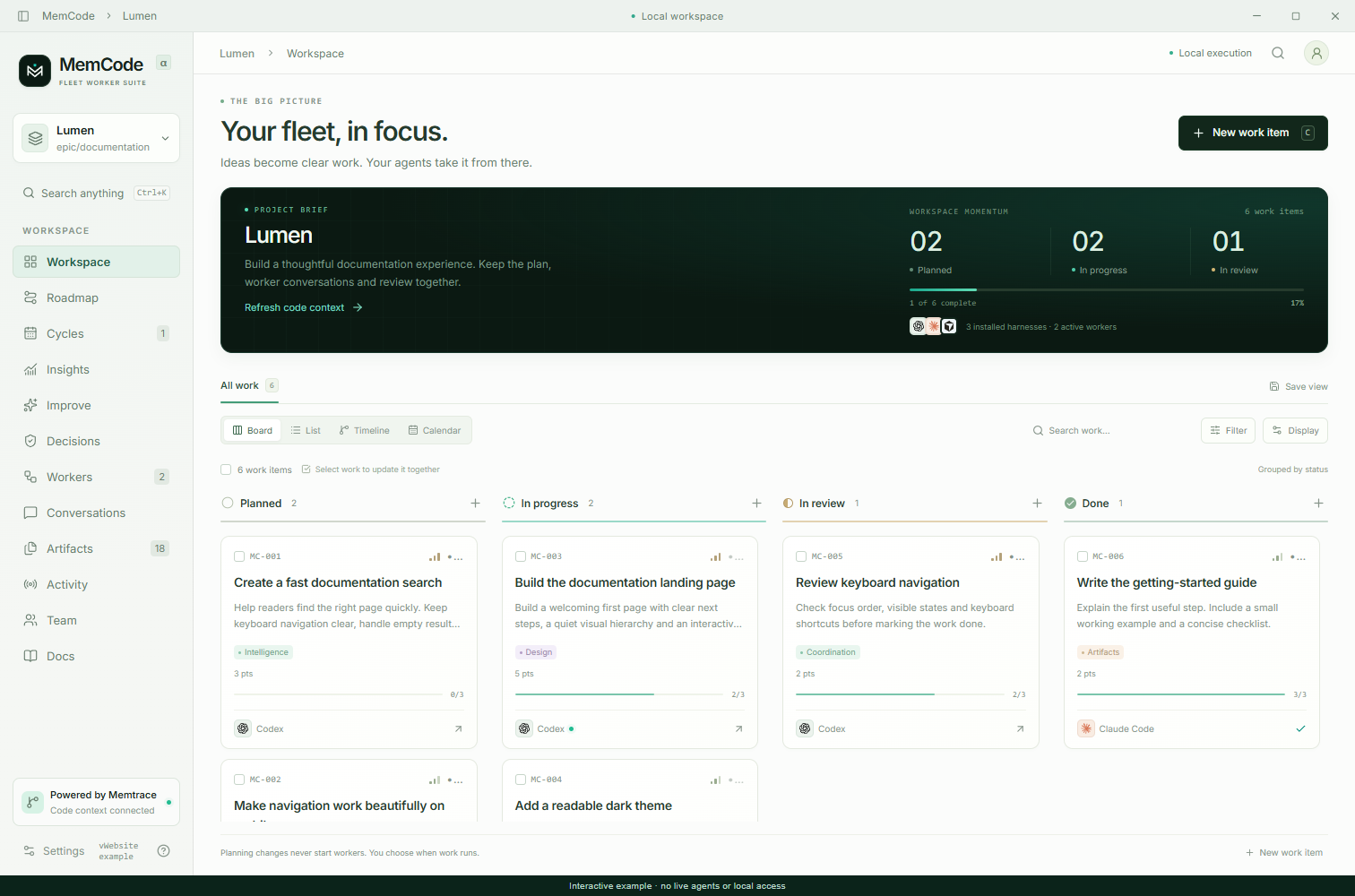
Create an epic for a coherent outcome, such as “A calmer reading experience.” The epic owns a branch. Add a focused story with the outcome, relevant context and a way to check success.
A useful brief might be: “Add the native search shortcut. Keep existing search behavior, make the visible hint match the platform, and check both Windows and macOS paths.”
Measure the source scope, inspect the proposed harness/model route, then choose Start worker. Cognitive and cyclomatic complexity, nesting and structural impact inform the route. They do not prove how difficult all future code will be. You can override the assignment.
Review and follow up#
Open the story to follow its conversation. Changes shows attributed additions and deletions. Artifacts opens saved reports and documents; Browser is a separate live page session where supported. Terminal shows persistent sessions such as development servers.
Select relevant text, code lines or document content and save a review comment. It stays attached to the selection until you explicitly include it in a follow-up. Saving a comment does not silently send it to a worker.
Send follow-ups with Command+Enter on macOS or Ctrl+Enter on Windows/Linux. A busy worker queues them; Queue lets you edit or cancel before pickup. Worker completion creates a review candidate. Inspect the work before marking the story done.
The shared native agent browser currently requires Windows. Do not expect that feature to work identically on macOS yet. Browser sessions and terminals are local, not shared automatically with a team.
Local retrieval and dictation#
In beta.9 or later, open Settings to set up these optional tools on Apple Silicon Macs and Windows x64. The installer includes the local inference runtime; you do not need another model app or a package path.
- 1Set up local retrieval
Under Focused code context, enable Use a local retrieval assistant and choose Set up local retrieval. The verified model download is about 874 MB. Wait for Ready to assist, then save Settings. Workers share one local model process; Memtrace remains responsible for source evidence and measurements.
- 2Set up local dictation
Choose Set up local dictation. The first download is about 79 MB on Mac or 86 MB on Windows. When you first click a microphone in a prompt, allow MemCode to use your microphone. Review the transcript before sending it.
Downloads show progress and can be retried. Installed model files are reused after restart. Retrieval inference and transcription run on this computer. Advanced settings for an existing model or local server remain optional. In beta.10 or later, saving unrelated settings keeps your Memtrace connection active; changing the engine executable reconnects it.
What comes next#
Use cycles when you want a focused delivery window. Add manual points and start/due dates for charts, timeline and calendar. Charts show recorded history, not reconstructed past work.
Continue with your first shared project. Application updates are separate from joining a team or fetching source; check MemCode's update settings for published releases.