
Connect your coding agent
Register Memtrace as an MCP server with your coding agent — Claude Code, Cursor, Codex, VS Code, and 5 more clients are supported out of the box.
Overview#
The bundled installer registers Memtrace as an MCP server with 9 agent clients. Every client gets the same server shape — a command that runs the Memtrace binary with a single mcp argument, and no environment variables to configure (the binary reads its own config at runtime). Run the installer once and every supported client picks up the same local index:
$ memtrace setup --yes
# registers MCP config, skills, and hooks for every detected client

$ npx -y memtrace-skills@latest install --local
# scoped alternative: writes config into the current project only
If memtrace start can't find an MCP config for the current workspace, it prints a hint and — in an interactive terminal — offers to run the local installer inline.
| Client | Config file written | Shape |
|---|---|---|
| Claude Code | ~/.claude/settings.json | mcpServers.memtrace, plus skills as a plugin |
| Cursor | ~/.cursor/mcp.json | mcpServers.memtrace {command, args: ["mcp"], env: {}} |
| Codex | ~/.codex/config.toml | [mcp_servers.memtrace] bare binary, no shim |
| Gemini CLI | .gemini/settings.json | mcpServers.memtrace |
| Windsurf | ~/.codeium/windsurf/mcp_config.json | mcpServers.memtrace (user-level only, even with --local) |
| VS Code (Copilot MCP) | User-profile mcp.json | servers.memtrace {type: "stdio", command, args: ["mcp"]} |
| Hermes | ~/.hermes/config.yaml | mcpServers block with enabled: true |
| OpenCode | ~/.config/opencode/opencode.json | mcp.memtrace {type: "local", command: [binary, "mcp"], enabled: true} |
| Kiro | ~/.kiro/settings/mcp.json | mcpServers.memtrace, skills as steering docs |
Claude Code#
The global install merges Memtrace into ~/.claude/settings.json under mcpServers.memtrace, preserving any existing user env. Skills install two ways: as the memtrace-skills plugin under ~/.claude/plugins/cache/memtrace (registered in enabledPlugins) and as bare copies in ~/.claude/skills. The Rail discovery-routing hook is added as a PreToolUse entry in the same settings file.
With --local, config goes to the project instead: skills under .claude/skills and the MCP entry in .mcp.json.
Cursor#
Cursor's config lives at ~/.cursor/mcp.json (or .cursor/mcp.json with --local):
{
  "mcpServers": {
    "memtrace": {
      "command": "memtrace",
      "args": ["mcp"],
      "env": {}
    }
  }
}
Skills are written to .cursor/skills, and the Rail hook goes into .cursor/hooks.json.
Codex#
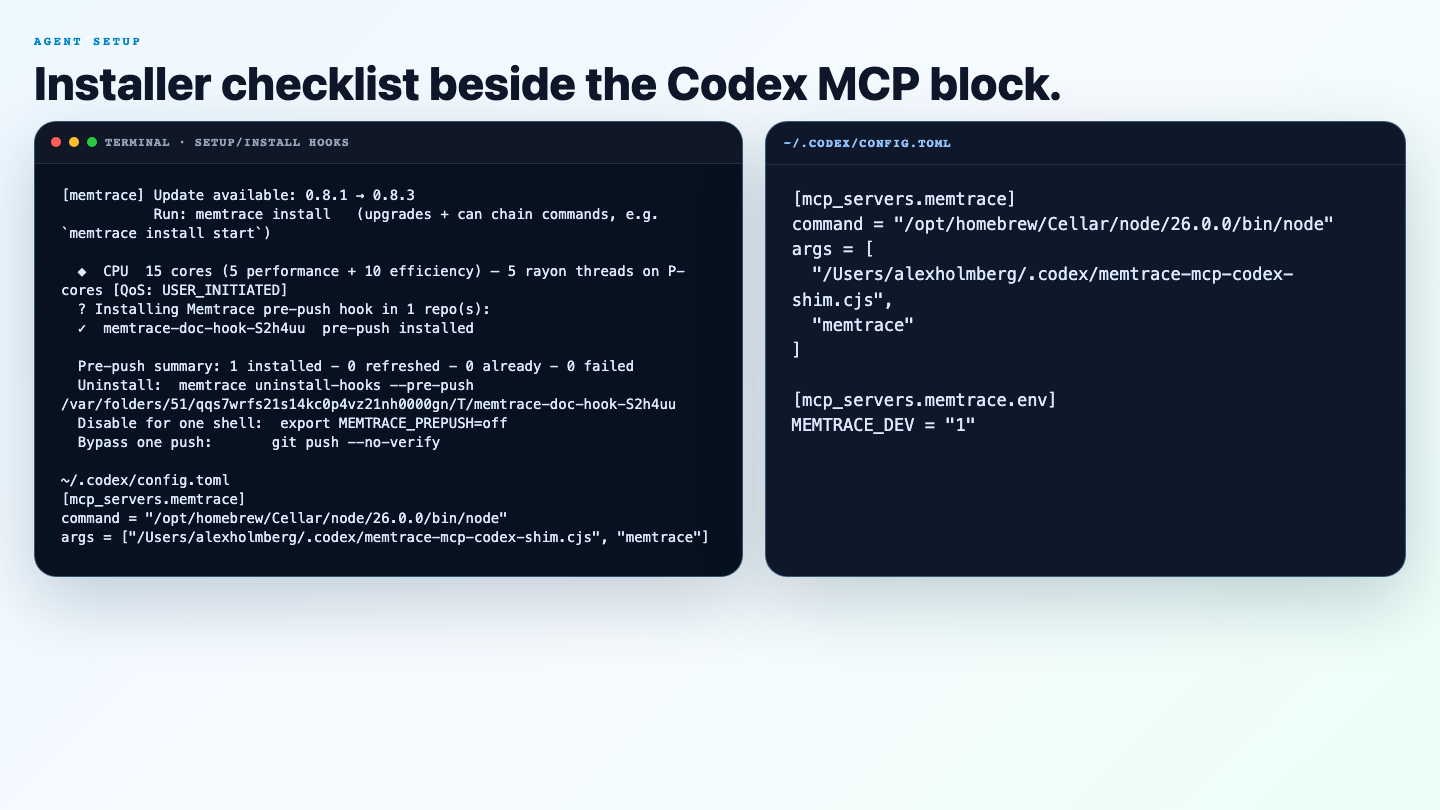
Codex is the one client that gets a bare binary config — no Node shim in the middle. The installer writes ~/.codex/config.toml (or .codex/config.toml with --local):
[mcp_servers.memtrace]
command = "memtrace"
args = ["mcp"]
Any existing [mcp_servers.memtrace.env] table is preserved across re-installs. The installer tries the codex mcp add CLI first when it's available, falling back to writing the TOML directly. The Rail hook is registered in .codex/hooks.json, and skills go to ~/.agents/skills.
The Memtrace MCP server itself detects clientInfo.name at initialize time and emits Codex-safe, annotation-free tool content when it's talking to Codex — a two-item summary+JSON split is reserved for Claude clients only. Codex doesn't need a translation layer, so it doesn't get one.
VS Code (Copilot MCP)#
The global install targets the user-profile mcp.json (macOS: ~/Library/Application Support/Code/User/mcp.json, Linux: $XDG_CONFIG_HOME/Code/User/mcp.json, Windows: %APPDATA%/Code/User/mcp.json). With --local it writes .vscode/mcp.json instead:
{
  "servers": {
    "memtrace": {
      "type": "stdio",
      "command": "memtrace",
      "args": ["mcp"]
    }
  }
}
Other clients#
The remaining 5 clients follow the same command/args shape, each in its own native config location.
Gemini CLI
Writes mcpServers.memtrace into .gemini/settings.json (home or project), with the Rail hook in the same file.
Windsurf
Writes mcpServers.memtrace into ~/.codeium/windsurf/mcp_config.json — this file is always user-level, even when you pass --local. Skills go to ~/.codeium/windsurf/skills or .windsurf/skills depending on scope.
Hermes
Writes a memtrace block under mcpServers in ~/.hermes/config.yaml (command, args, env, and enabled: true). Skills go to ~/.hermes/skills.
OpenCode
Writes mcp.memtrace into ~/.config/opencode/opencode.json (or opencode.json in the project) using the array command form: {type: "local", command: [binary, "mcp"], enabled: true}. Skills are written with OpenCode-compatible frontmatter, and the Rail plugin is written to both a plugin/ and a plugins/ directory to cover both naming conventions.
Kiro
Writes mcpServers.memtrace into ~/.kiro/settings/mcp.json (or .kiro/settings/mcp.json locally). Kiro has no skills format, so Memtrace skills are written as auto-inclusion steering docs under .kiro/steering/.
How attaching works#
memtrace mcp never spawns a second stack on top of a running memtrace start. When an MCP client launches memtrace mcp and a start daemon already owns the workspace, the child process attaches to that existing owner and talks to the same loopback MemDB instance instead of booting its own.
memtrace mcp is headless by default — it never binds a UI port unless you pass --ui or set MEMTRACE_MCP_UI=1. If no daemon is running, the first MCP client becomes the workspace owner and starts the local MemDB and Cortex sidecars for its session. Run memtrace start separately when you also want the long-lived watcher, dashboard, and background indexing workflow — see Getting started.
Flags#
| Flag | Description |
|---|---|
--only <agent> | Register just one client (e.g. claude, cursor, codex) instead of every detected client. Without it, an interactive TTY shows an agent picker. |
--local | Write config into the current project instead of the user's home directory. Windsurf is the one exception — its MCP config is always user-level. |
Setup is consent-gated: a plain npm install -g memtrace never touches your agent configs. Run memtrace setup --yes to apply them, as covered in Getting started.